
Complete Database Guide for Beginners: Concepts, Modern Setup, and Best Practices 2026
What is a Database in the Digital Era 2026?
A database is a systematic collection of information stored in a computer so that it can be examined using a computer program to obtain information from the database. In 2026, databases have evolved far beyond traditional concepts into sophisticated technologies with various types and different use cases.
Database Evolution Over Time:
The term database originated from computer science and refers to a collection of interrelated data, and its software should be referred to as a database management system (DBMS). Records similar to databases actually existed before the industrial revolution in the form of ledgers, receipts, and collections of business-related data.
Basic Database Concepts:
- A collection of records or pieces of knowledge
- Structured description of the types of facts stored within it
- Data that forms interrelated files (relations) with specific procedures
- Organized based on a certain schema or structure
Modern Databases in 2026:
1. Relational Database (SQL)
Popular in 2026:
- MySQL 8.0+ - Open-source, scalable, feature-rich
- PostgreSQL 16+ - Advanced features, JSON support, enterprise-ready
- MariaDB 11+ - MySQL fork with enhanced performance
- SQLite - Embedded database for mobile and desktop
Use Cases:
- Financial systems (ACID compliance critical)
- E-commerce platforms
- Content management systems
- Enterprise applications
2. NoSQL Database
Popular in 2026:
- MongoDB 7.0+ - Document-based, flexible schema
- Redis 7.0+ - In-memory, high-performance caching
- Cassandra - Distributed, high availability
- Couchbase - Document database with real-time capabilities
- Neo4j - Graph database for relationship data
Use Cases:
- Big data and analytics
- Real-time applications
- Mobile apps with flexible schema
- Social networks and recommendation systems
3. Cloud Database (DBaaS)
Popular in 2026:
- Amazon RDS/Aurora - Managed relational databases
- Google Cloud SQL - Fully managed MySQL, PostgreSQL
- Azure Database - Microsoft’s cloud database services
- MongoDB Atlas - Managed MongoDB
- Firebase Realtime Database - NoSQL for mobile/web apps
Cloud Database Advantages:
- Auto-scaling and high availability
- Automated backups and disaster recovery
- Global distribution
- Managed security and compliance
- Pay-as-you-go pricing
4. New Generation Databases (2026)
- Vector Databases (Pinecone, Weaviate) - for AI/ML applications
- Time-Series Databases (InfluxDB, TimescaleDB) - for IoT and analytics
- Multi-Model Databases (ArangoDB, Couchbase) - combination of SQL and NoSQL
- Serverless Databases (PlanetScale, Neon) - auto-scaling, pay-per-query

Modern Database Setup: Various Methods in 2026
When creating databases in 2026, there are several modern methods that are more efficient and scalable compared to traditional approaches:
Method 1: Docker (Recommended for Development)
Advantages:
- Consistent environment
- Easy setup and teardown
- Version control for database setup
- Isolation from host system
Setup MySQL with Docker:
# Pull MySQL 8.0 image
docker pull mysql:8.0

# Run MySQL container
docker run --name mysql-container \
  -e MYSQL_ROOT_PASSWORD=yourpassword \
  -e MYSQL_DATABASE=myapp \
  -p 3306:3306 \
  -d mysql:8.0

# Connect to MySQL container
docker exec -it mysql-container mysql -u root -p
Method 2: Local Installation (Traditional)
For Linux users:
# Update package manager
sudo apt update

# Install MySQL Server 8.0
sudo apt install mysql-server

# Secure installation
sudo mysql_secure_installation

# Start MySQL service
sudo systemctl start mysql
sudo systemctl enable mysql
For macOS users:
# Install MySQL with Homebrew
brew install mysql@8.0

# Start MySQL service
brew services start mysql@8.0

# Secure installation
mysql_secure_installation
For Windows users:
- Option 1: Install XAMPP (complete package with Apache, PHP, MySQL)
- Option 2: Install MySQL Installer from mysql.com
- Option 3: Use WSL2 for Linux-like environment
Method 3: Cloud Database (Production Recommended)
Google Cloud SQL:
# Install Google Cloud CLI
gcloud components install cloud-sql-proxy

# Connect to Cloud SQL instance
cloud-sql-proxy instance_name
Amazon RDS:
# Install AWS CLI
pip install awscli

# Connect to RDS instance
mysql -h endpoint.rds.amazonaws.com -u admin -p
MongoDB Atlas (NoSQL):
- Register at mongodb.com/atlas
- Create free cluster (512MB)
- Connect with connection string
Method 4: GUI Tools (Modern Alternative)
Popular Database GUI Tools 2026:
- DBeaver - Open-source, multi-database support
- TablePlus - Native, modern UI, supports multiple databases
- DataGrip - JetBrains IDE for databases
- MySQL Workbench - Official MySQL GUI tool
- phpMyAdmin - Web-based (usually bundled with XAMPP)
Creating a Database in CMD/Terminal (Step by Step)
After MySQL is installed, here are the complete steps to create a database using command line:
Step 1: Login to MySQL
Before creating a database, we must log in to MySQL first. Here are various ways to login:
Login as root (Development):
mysql -u rootLogin with password (Production recommended):
mysql -u root -p
# You will be prompted to enter password
Login to remote server:
mysql -h hostname -u username -pLogin with specific database:
mysql -u root -p database_nameLogin with custom port:
mysql -P 3307 -u root -pStep 2: Exploring MySQL Environment
After successfully logging in, we will see the MySQL prompt and can run various commands:
Display all existing databases:
SHOW DATABASES;Output will show default databases:
information_schema- Metadata about databasesmysql- MySQL system databaseperformance_schema- Performance monitoring datasys- Sys schema for performance views
Show MySQL version:
SELECT VERSION();Show current user:
SELECT USER();Show current database:
SELECT DATABASE();Step 3: Creating a New Database
Now we will create a new database with best practices:
Basic syntax:
CREATE DATABASE database_name;Create database with character set and collation (Recommended):
CREATE DATABASE myapp_db
CHARACTER SET utf8mb4
COLLATE utf8mb4_unicode_ci;
Create database if not exists (Idempotent):
CREATE DATABASE IF NOT EXISTS myapp_db
CHARACTER SET utf8mb4
COLLATE utf8mb4_unicode_ci;
View the newly created database:
SHOW DATABASES;Use a specific database:
USE myapp_db;Step 4: Creating Tables with Modern Practices
After using the database, we will create tables with proper structure:
Example creating users table:
CREATE TABLE users (
    id INT AUTO_INCREMENT PRIMARY KEY,
    username VARCHAR(50) NOT NULL UNIQUE,
    email VARCHAR(100) NOT NULL UNIQUE,
    password_hash VARCHAR(255) NOT NULL,
    full_name VARCHAR(100),
    created_at TIMESTAMP DEFAULT CURRENT_TIMESTAMP,
    updated_at TIMESTAMP DEFAULT CURRENT_TIMESTAMP ON UPDATE CURRENT_TIMESTAMP,
    is_active BOOLEAN DEFAULT TRUE,
    INDEX idx_email (email),
    INDEX idx_username (username)
) ENGINE=InnoDB DEFAULT CHARSET=utf8mb4 COLLATE=utf8mb4_unicode_ci;
View table structure:
DESCRIBE users;
-- or
SHOW COLUMNS FROM users;
-- or
SHOW CREATE TABLE users;
Step 5: Insert Data into Table
Insert single row:
INSERT INTO users (username, email, password_hash, full_name)
VALUES ('johndoe', 'john@example.com', 'hashed_password_here', 'John Doe');
Insert multiple rows:
INSERT INTO users (username, email, password_hash, full_name)
VALUES
    ('janedoe', 'jane@example.com', 'hashed_password_here', 'Jane Doe'),
    ('bobsmith', 'bob@example.com', 'hashed_password_here', 'Bob Smith'),
    ('alicewong', 'alice@example.com', 'hashed_password_here', 'Alice Wong');
Step 6: Query Data from Table
Select all data:
SELECT * FROM users;Select with conditions:
SELECT username, email, full_name
FROM users
WHERE is_active = TRUE
ORDER BY created_at DESC;
Select with limit:
SELECT * FROM users
LIMIT 10;
Select with pagination:
SELECT * FROM users
LIMIT 10 OFFSET 20;
Step 7: Update Data
Update single record:
UPDATE users
SET full_name = 'Johnathan Doe'
WHERE username = 'johndoe';
Update with complex condition:
UPDATE users
SET is_active = FALSE
WHERE created_at < '2020-01-01' AND is_active = TRUE;
Step 8: Delete Data
Delete single record:
DELETE FROM users
WHERE id = 1;
Delete with condition:
DELETE FROM users
WHERE is_active = FALSE AND created_at < '2020-01-01';
⚠️ Warning: Delete all data
DELETE FROM users;
-- or
TRUNCATE TABLE users;
Step 9: Drop Database and Table
Drop table:
DROP TABLE IF EXISTS users;Drop database:
DROP DATABASE IF EXISTS myapp_db;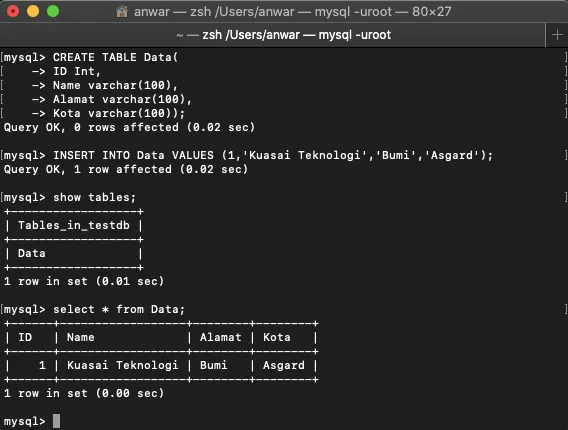
Database Security Best Practices 2026
1. User Management
Create separate user for each application:
CREATE USER 'app_user'@'localhost' IDENTIFIED BY 'strong_password';
GRANT SELECT, INSERT, UPDATE, DELETE ON myapp_db.* TO 'app_user'@'localhost';
FLUSH PRIVILEGES;
2. Password Security
- Use strong passwords (minimum 12 characters)
- Never use default passwords in production
- Use password management tools
- Regular password rotation
3. Network Security
- Restrict remote access
- Use SSL/TLS connections
- Implement firewall rules
- Use VPN for remote access
4. Data Encryption
- Encrypt sensitive data (passwords, personal info)
- Use hashing for passwords (bcrypt, argon2)
- Encrypt backups
- Implement data-at-rest encryption
5. Regular Maintenance
-- Optimize table
OPTIMIZE TABLE users;

-- Analyze table
ANALYZE TABLE users;

-- Repair table (if corrupted)
REPAIR TABLE users;
Next Steps for Learning Databases
After understanding database basics, here are advanced steps to become a database expert:
- Advanced SQL - Joins, subqueries, stored procedures, triggers
- Database Design - Normalization, ER diagrams, indexing strategies
- Performance Optimization - Query optimization, indexing, caching
- Backup & Recovery - Automated backups, point-in-time recovery
- Replication & Clustering - High availability, load balancing
- NoSQL Databases - MongoDB, Redis, Cassandra
- Cloud Database Services - RDS, Cloud SQL, Atlas
- Database Administration - Monitoring, troubleshooting, capacity planning
Other methods for creating tables in XAMPP phpMyAdmin are not much different from the tutorial in this article. For continuations of this article, follow our database tutorial series covering more advanced topics step by step. Don’t forget to visit the KuasaiTeknologi blog for other latest programming tutorials.