
Easy Way to Contribute to Others' Projects with Fork on GitHub
After using GitHub for a while, you might want to contribute to someone else’s project. Or maybe you want to use someone’s project as a starting point for your own. This process is known as forking.
Creating a Fork produces a personal copy of someone else’s project. A fork acts as a bridge between the original repository and your personal copy. You can submit Pull Requests to help improve others’ projects by offering your changes back to the original project. Forking is the heart of social coding on GitHub.

Forking a Repository
To fork a repository (like the Spoon-Knife repository), click the Fork button in the repository header.
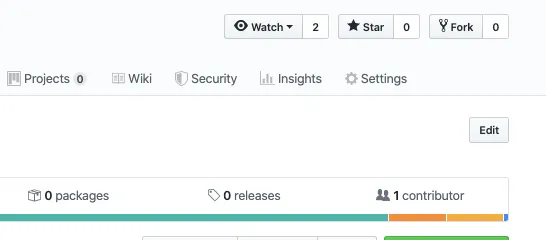
Once the fork process is complete, you will be taken to your copy of the repository.
Cloning Your Fork
You have successfully forked the repository, but so far, it only exists on GitHub. To work on the project, you need to clone it to your computer.
If you use GitHub Desktop, this process is very easy. In your fork, navigate to the right sidebar and click Clone or download. How you clone it is up to you—some options include using the command line or using GitHub Desktop.
Making and Pushing Changes
Go ahead and make some changes to the project using your favorite text editor, such as VS Code, Atom, etc. For example, you could edit index.html to add your GitHub username. When you are ready to send your changes, stage and commit them.
At this point, you are essentially telling the project owner, “Okay, I’ve taken a snapshot of my changes.” You can continue making more changes and taking more commit snapshots. When you’re ready, push your changes to your remote repository.
Making a Pull Request
Finally, you are ready to propose changes to the main project. This is the final step in forking someone else’s project and arguably the most important. If you’ve made changes that you feel will benefit the community as a whole, you should consider contributing back.
To do this, go to your repository on GitHub. For example, the URL would be https://github.com/<your_username>/Spoon-Knife. You will see a banner indicating that you recently pushed a new branch and can submit this branch “upstream” to the original repository:
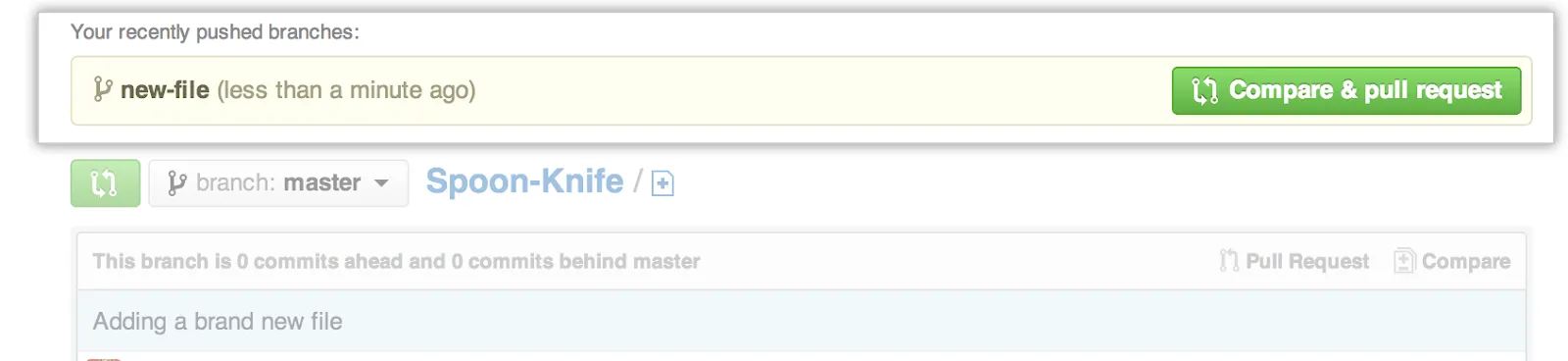
Click Compare & pull request to go to the discussion page, where you can enter a title and an optional description. It’s very important to provide useful information and the reason why you made this Pull Request in the first place. The repository owner should be able to determine if your changes are as beneficial to everyone as you think.
Once your change notes are as clear as possible, just click Create pull request, and you’re done!
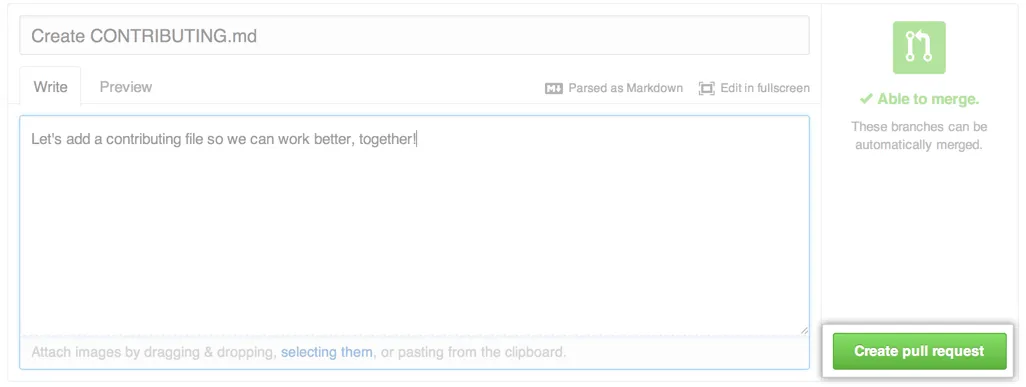
The Pull Request is an area for discussion. When requesting a Pull Request, you should provide detailed explanations of the changes you made so the original repository owner understands and can quickly merge your changes. If the repository owner rejects or requests changes to your Pull Request, modify it as soon as possible so the core repository code isn’t compromised if merged.
Hopefully, this is useful for learning how to contribute to others’ repositories. Have fun exploring the twists and turns as an open-source enthusiast!