Dart DevTools via Terminal | FLUTTER Visual Studio Code
Hello fellow bloggers! This time, I’ll discuss how to use Dart DevTools in the terminal. Launched with Flutter version 1.2, Dart DevTools is compatible with Dart version 2.25 and above. Every version of Dart introduces new tools, and Dart DevTools is particularly useful for Flutter development.
I am running Dart DevTools on Linux using the Visual Studio Code IDE.
What is Dart DevTools?
Dart DevTools is a suite of performance tools for Dart and Flutter. Although it was in preview during its initial release, it is actively developed to provide advanced features.
What can I do with Dart DevTools?
Dart DevTools supports inspecting the UI layout and state of a Flutter app, diagnosing UI performance issues, source-level debugging for Flutter or Dart command-line apps, and viewing general logs and diagnostic information about a running app.
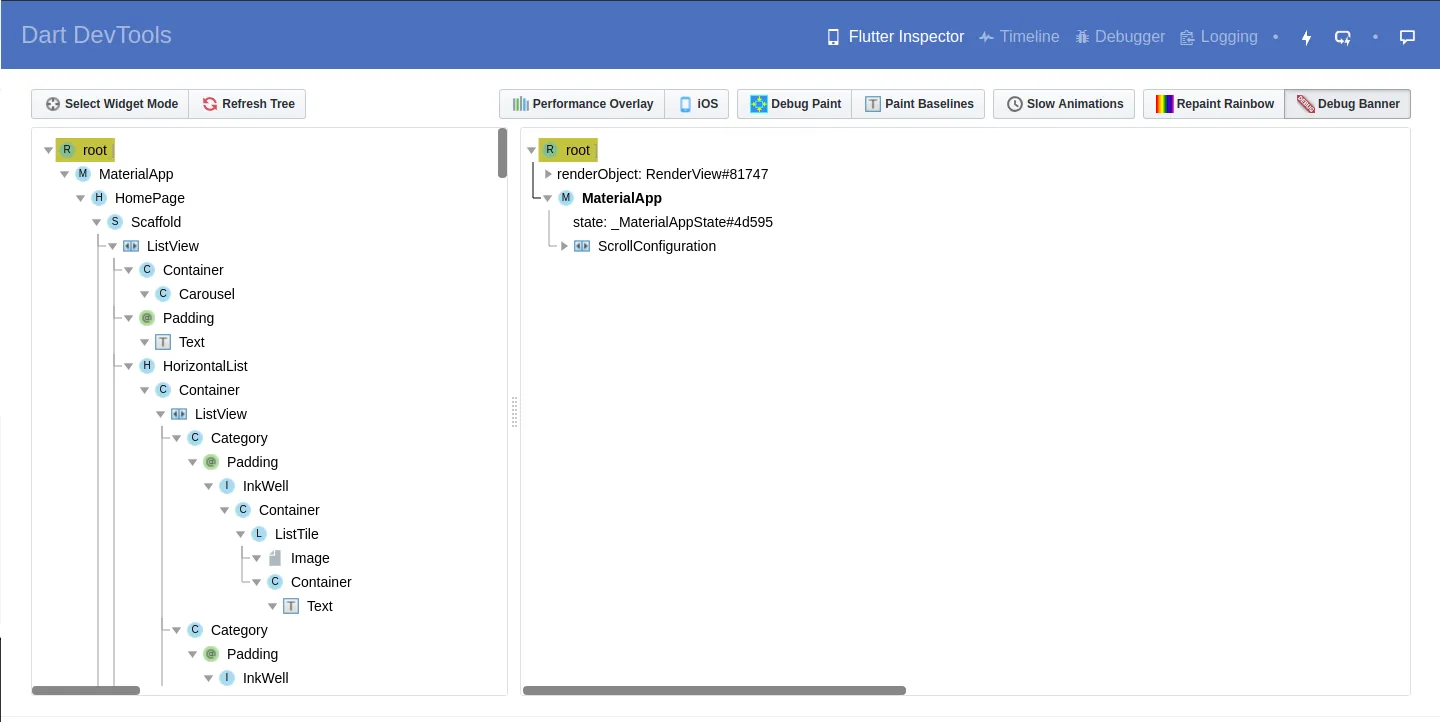
- Performance Overlay: To see the performance of the application you’ve built.
- iOS: To see how the app looks in iOS mode (even if running on Android).
- Debug Paint: To understand the layout or position of each component.
- Paint Baseline: To measure the bottom line of text within the application.
- Slow Animations: To slow down animation transitions for easier inspection.
These are the 5 tools I commonly use. Other tools like Timeline and Debugging are also available and are essential for software development. Debugging is a method used by programmers to find and remove bugs or defects in code so that the software works as expected.
Here are the steps to use Dart DevTools:
1. Running the server in the terminal
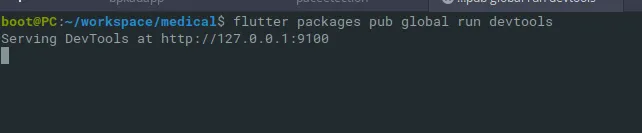
Run the following command to start the server:
flutter packages pub global run devtoolsOnce executed, the server will run on IP 127.0.0.1 with the default port 9100. Keep this terminal window open.
2. Running your Flutter app with the observatory port
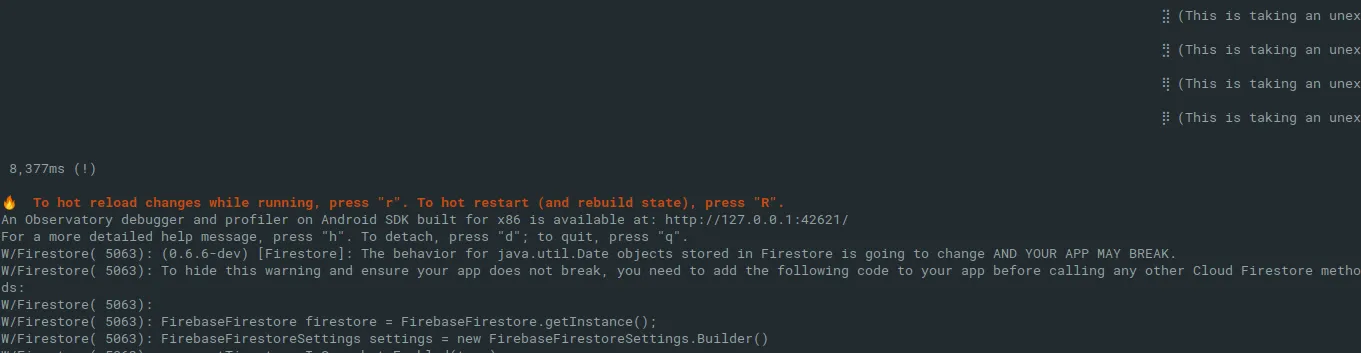
There are two ways to run Flutter for debugging:
flutter run --observatory-port=9200
# OR
flutter run --track-widget-creation
If you use the second method, the port will be random (for example, 42621 as shown in the image above).
3. Accessing DevTools in the web browser
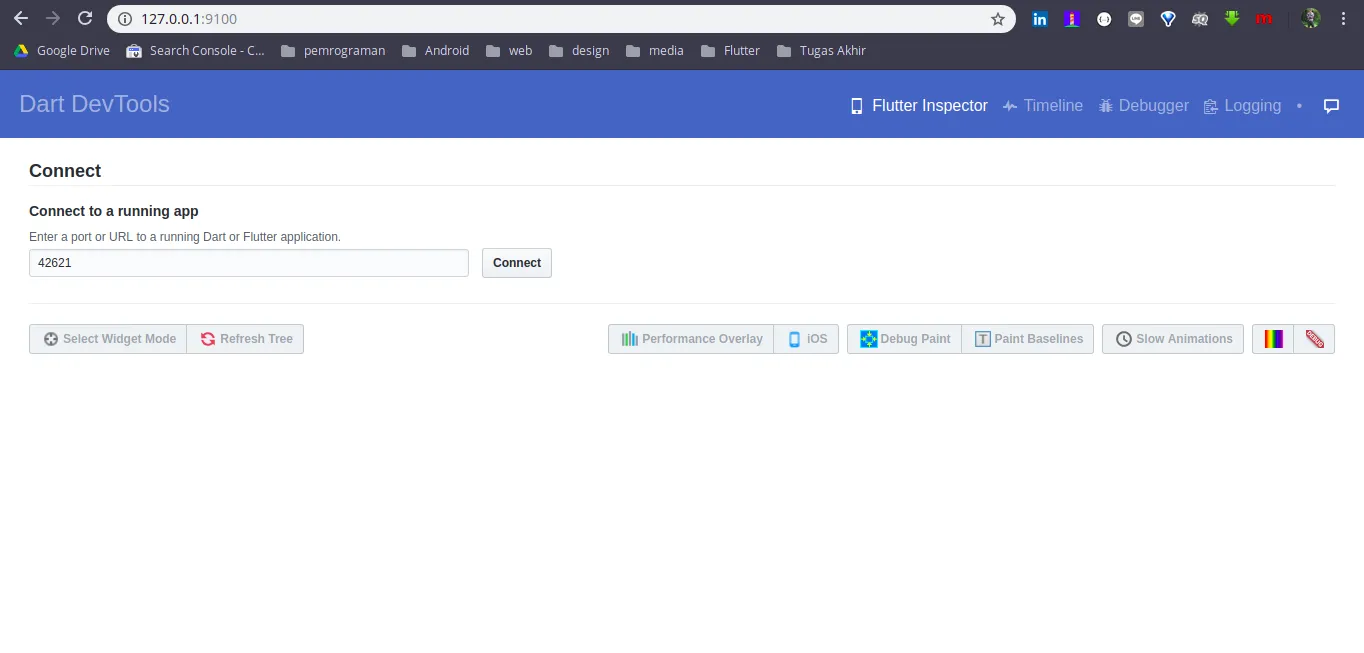
Open 127.0.0.1:9100 in your browser. Enter the port your app is running on (e.g., 42621) and click Connect.
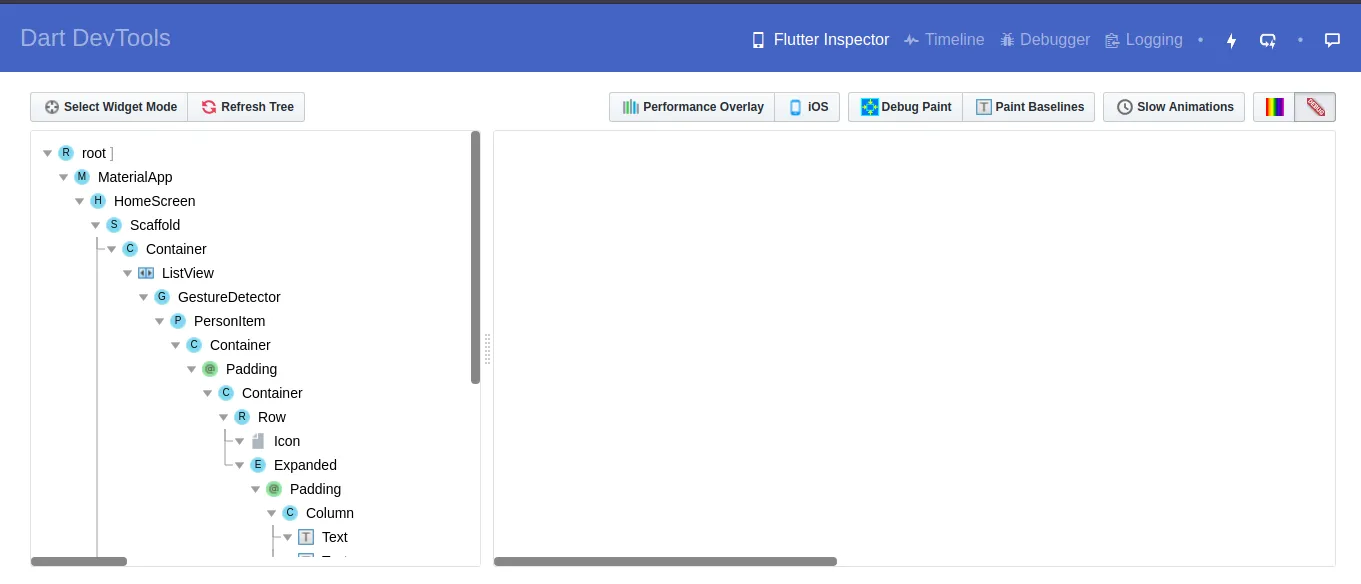
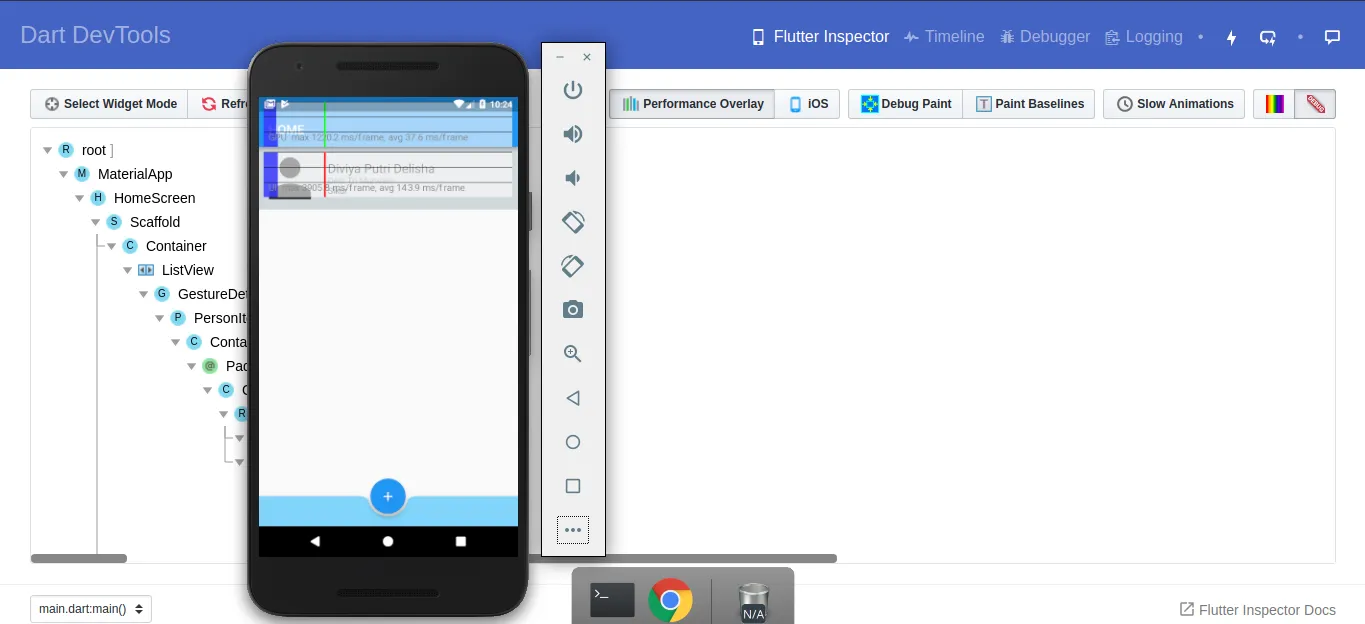
That’s how you use Dart DevTools! If you run into any issues or failures, feel free to ask in the comments section below. Happy coding!